Installation guide
1 - Download the game
You can download the latest version of the Priston Tale 2 installer here.
The continent of Priston is a vast and wondrous place filled with interesting characters, fantastic settings and epic adventures. For this reason, downloading Priston Tale 2 can take some time. Please be patient while the client downloads. It is worth the wait!
2 - Installing
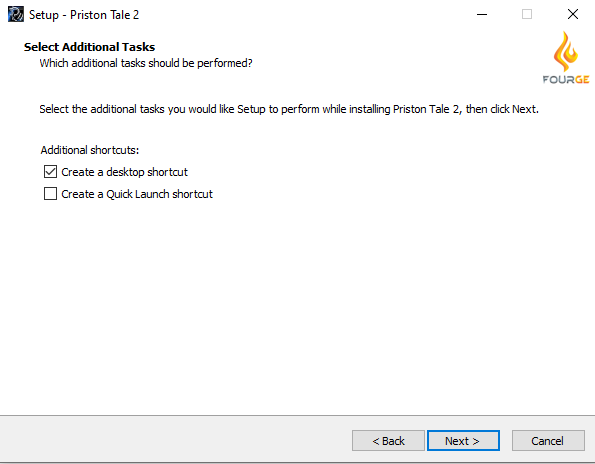
Once you have downloaded the Priston Tale 2 installer, run it. When it finishes, you can launch the game from the desktop shortcut or from the “PristonTale 2” folder in your Windows Start menu.
The installer will begin downloading the latest client version and will install it automatically, once finished, into the folders chosen during the initial installation.
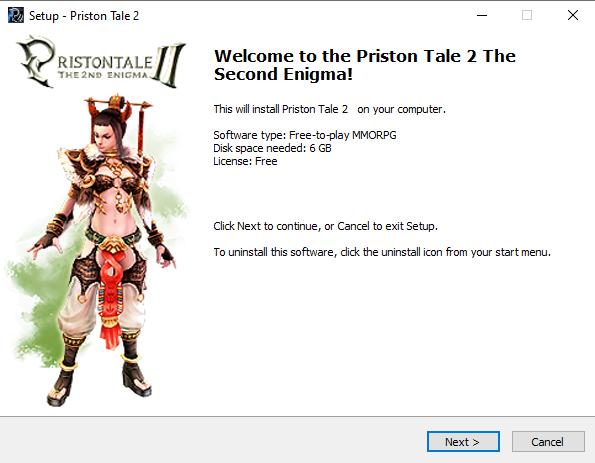
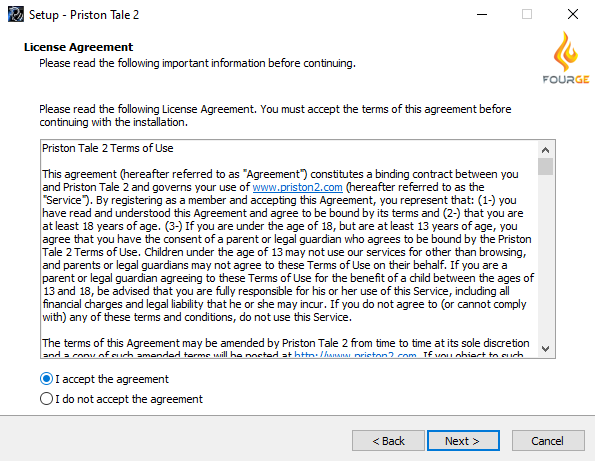
After clicking “Next” you must accept the game’s Terms of Use.
Then proceed to the end of the installation.
3 - Starting the game
Double-click the Priston Tale 2 desktop shortcut, or open the “PristonTale 2” folder in your Windows Start menu.

The game launcher will appear and automatically download any available updates.
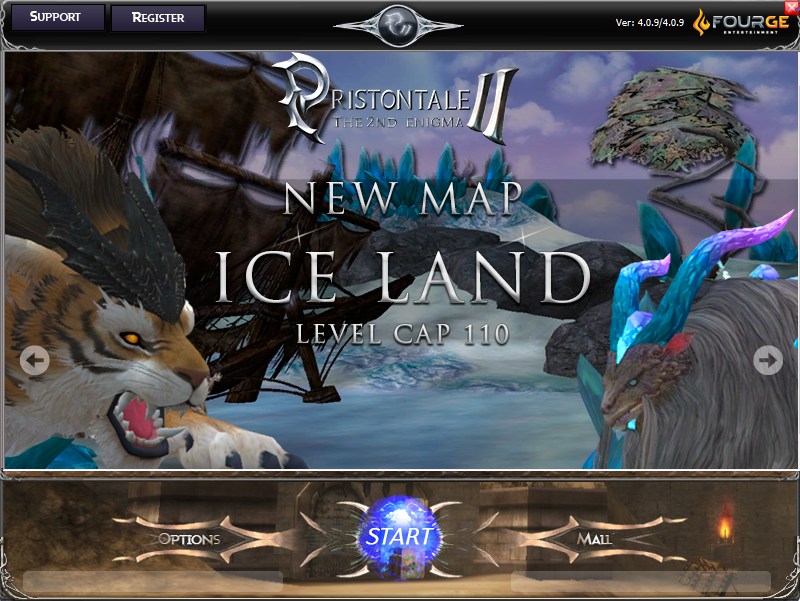
After the launcher has finished downloading updates, the “Play” button will light up. Click it to start Priston Tale 2.
4 - Logging in
After the game has started and the introduction ends, you will see the login screen. Enter your Priston Tale 2 account ID and password and click “Login” to start playing.

5 - Choosing a server
After logging in you will see the list of available servers. The right-hand column lists all servers currently online. The left-hand column lists recommended servers, based on your history and the current load. Below it is the last server you played on. To join, select a server from the list and click “Enter Game”.

6 - Choosing a race and class
After joining a server you will reach the character selection screen. From here you can pick characters you used before or create a new one by clicking “New Character” at the bottom of the screen.
When creating a character you choose one of 3 races: Morion, Tempskron and Sophetio, each with a short description. Keep in mind that your race influences the classes available and your starting area. It is worth researching each race and its classes first. When ready, click “Select”.


You will then reach the class selection screen. In the bottom-right corner the class names and their general attributes are shown. To choose a class click “Select”.

You can now customize your character. First, choose the name you want to appear in-game. This name should not be the same as your login ID! It must contain only letters and no spaces. After the name you can customize the appearance: hair style and color, facial features, skin color and eye color. If you like, click “Random” to randomize the look. When done, click “Create” at the bottom of the screen.

You are now ready to enter the world of Priston!